Develop Data Apps
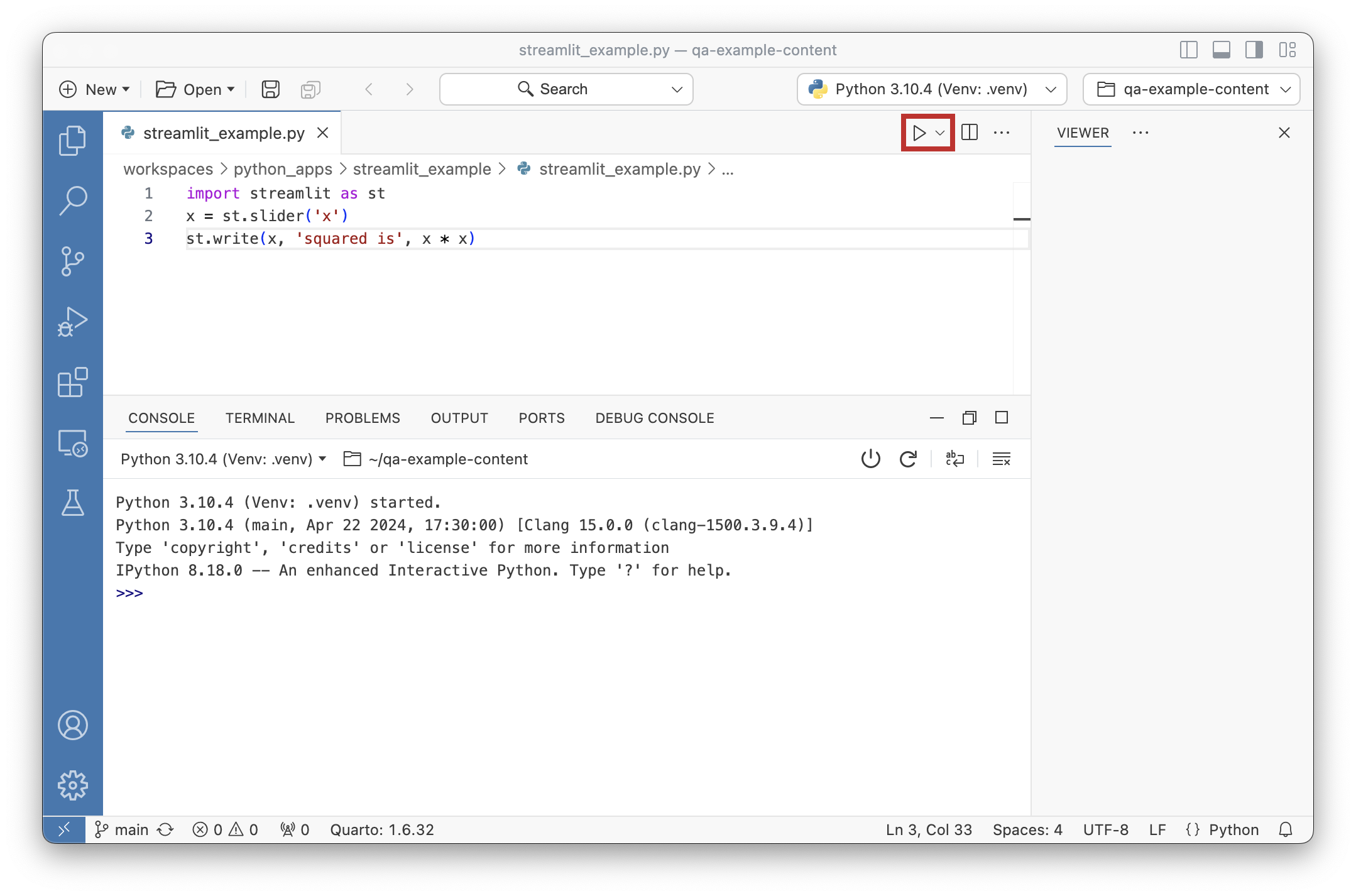
Positron provides a simplified method for running interactive data apps via the Play button. Instead of running an app from a Terminal, you can run supported apps by selecting the Play button in Editor Actions. Additionally, you can start a supported app in debug mode through the Play button context menu.
Supported app frameworks
Currently, Positron supports the following Python app frameworks:
- Dash
- FastAPI
- Flask
- Gradio
- Streamlit
- Shiny via the Shiny extension which is included as a bootstrapped extension
Running a data app
Open the
.pyfile of a supported app framework.In Editor Actions, select Play.
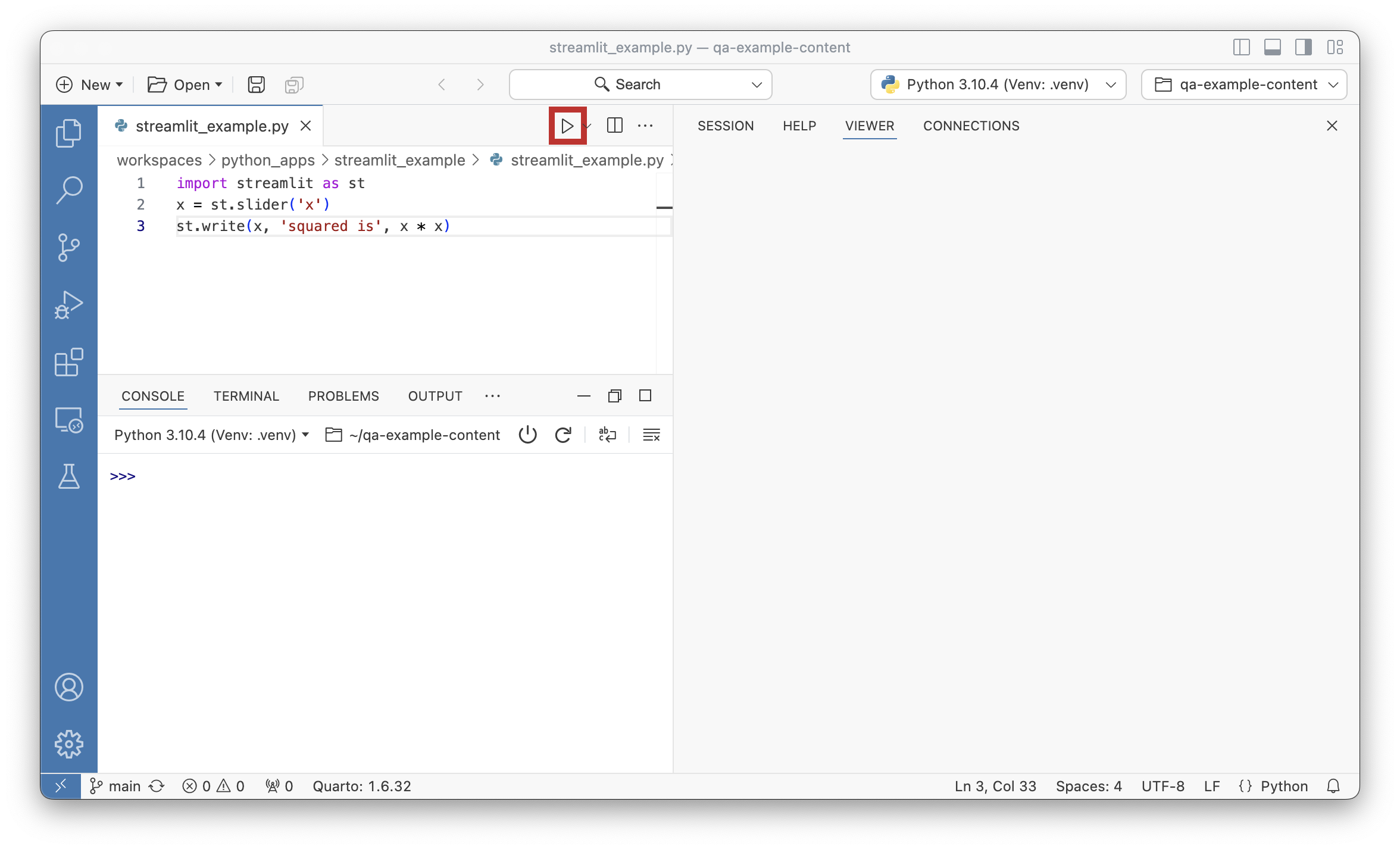
Positron App Launcher Play button
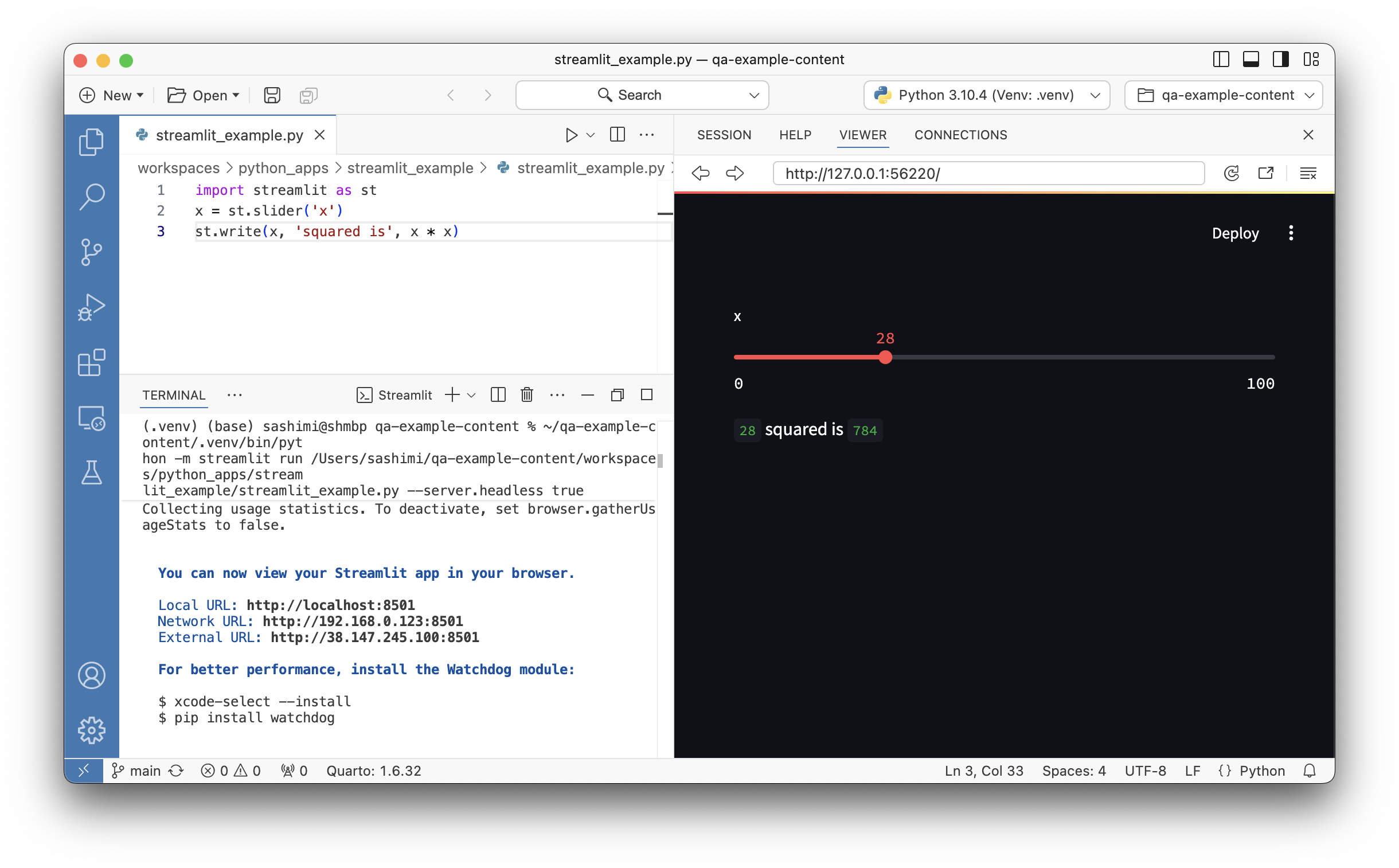
Then, Positron runs the app in a dedicated Terminal tab and opens the app URL in the Viewer pane. If your application does not automatically open in the Viewer, check that the settings python.terminal.shellIntegration.enabled and terminal.integrated.shellIntegration.enabled are enabled.
To stop the app, you can either:
- Select the interrupt button in the Viewer pane toolbar.
- Select the Terminal tab running the application and use the trash can icon to delete the Terminal or press Ctrl-CCtrl-C to stop the process.
Debugging a data app
Open the
.pyfile of a supported app framework.Set breakpoints in the
.pyfile by selecting the editor margin.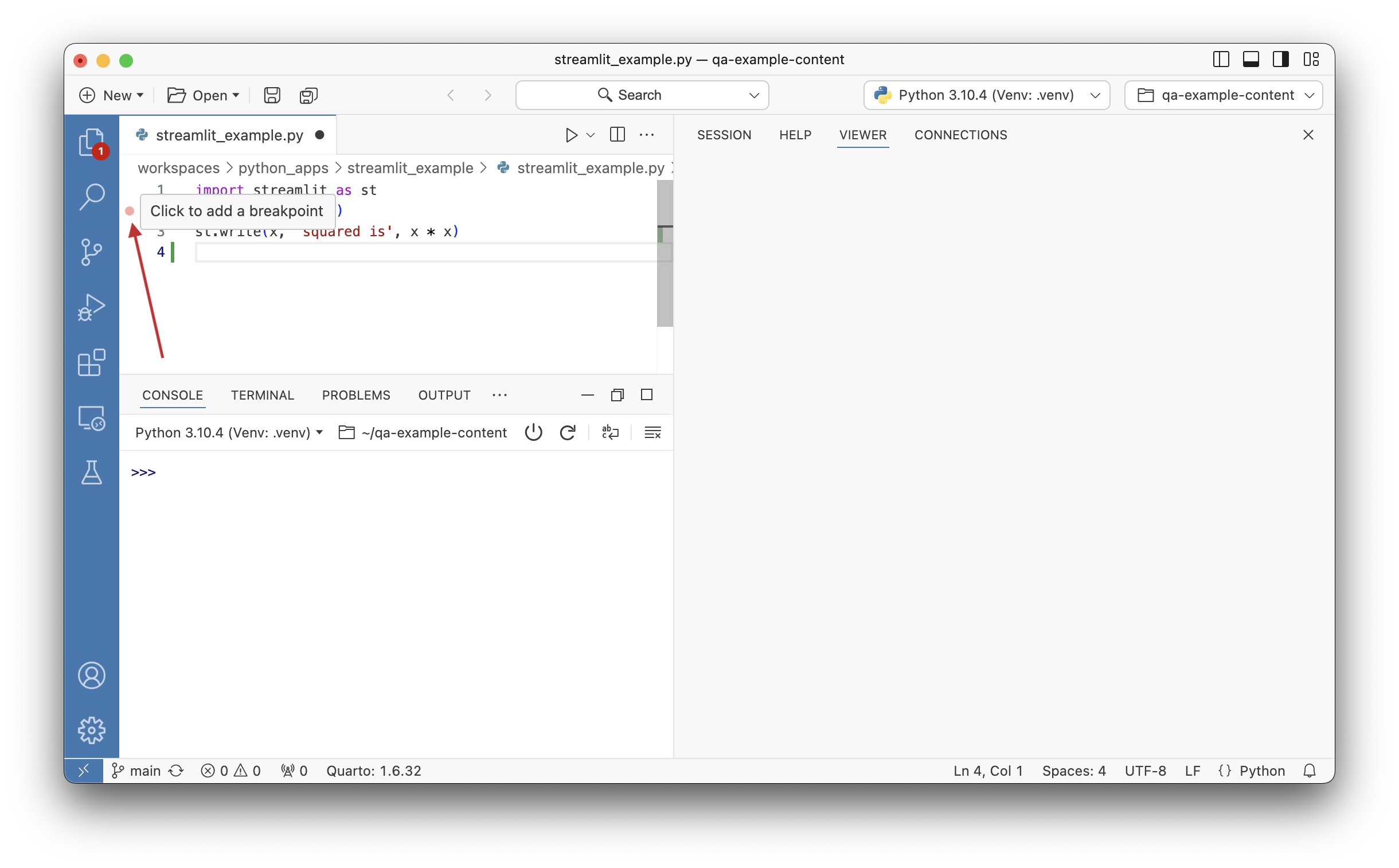
Editor margin area for adding breakpoints Select the Play button dropdown context menu and choose Debug [{SUPPORTED_APP_TYPE}] App in Terminal.
- For this example, we select Debug Steamlit App in Terminal.
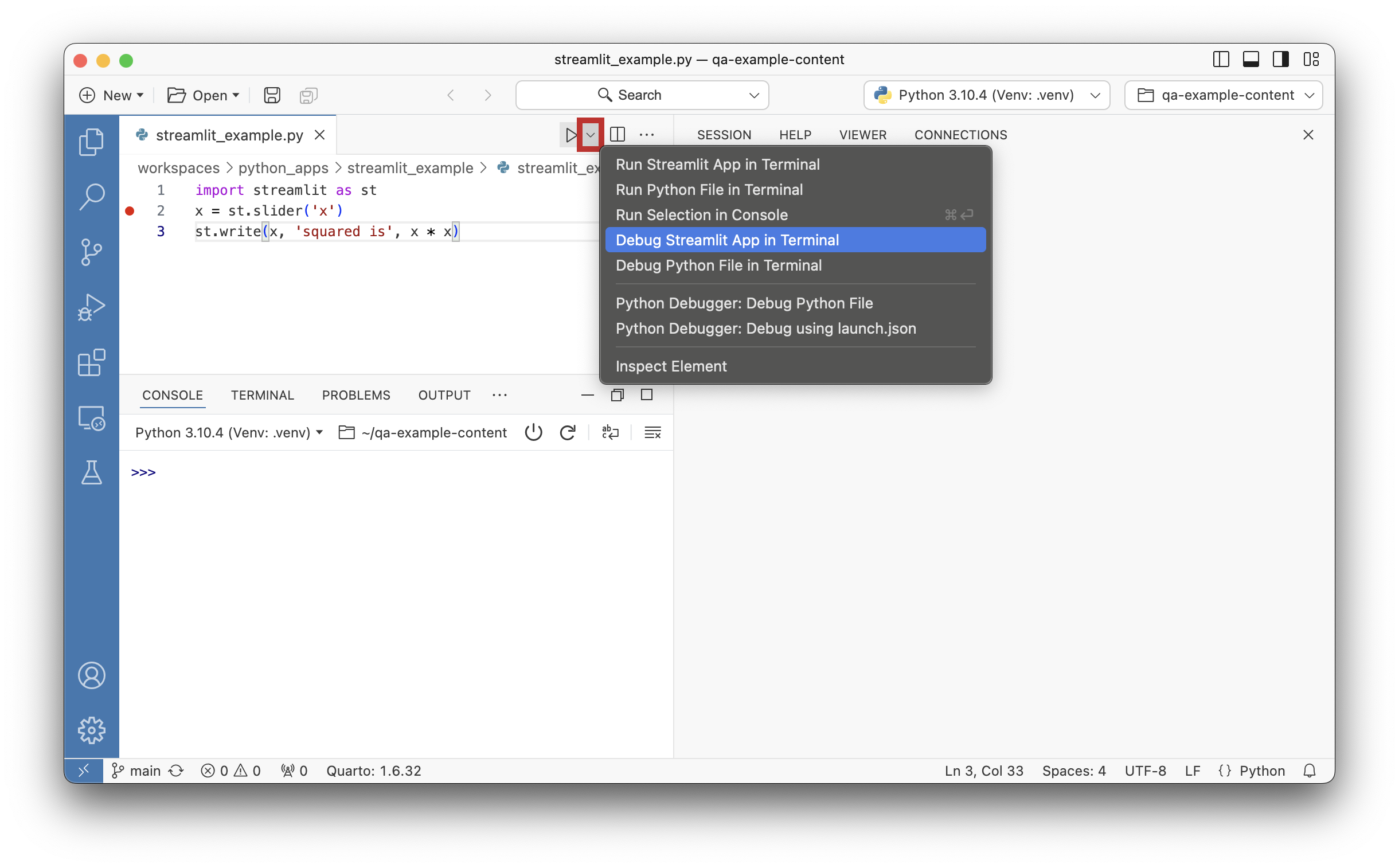
Play button dropdown context menu
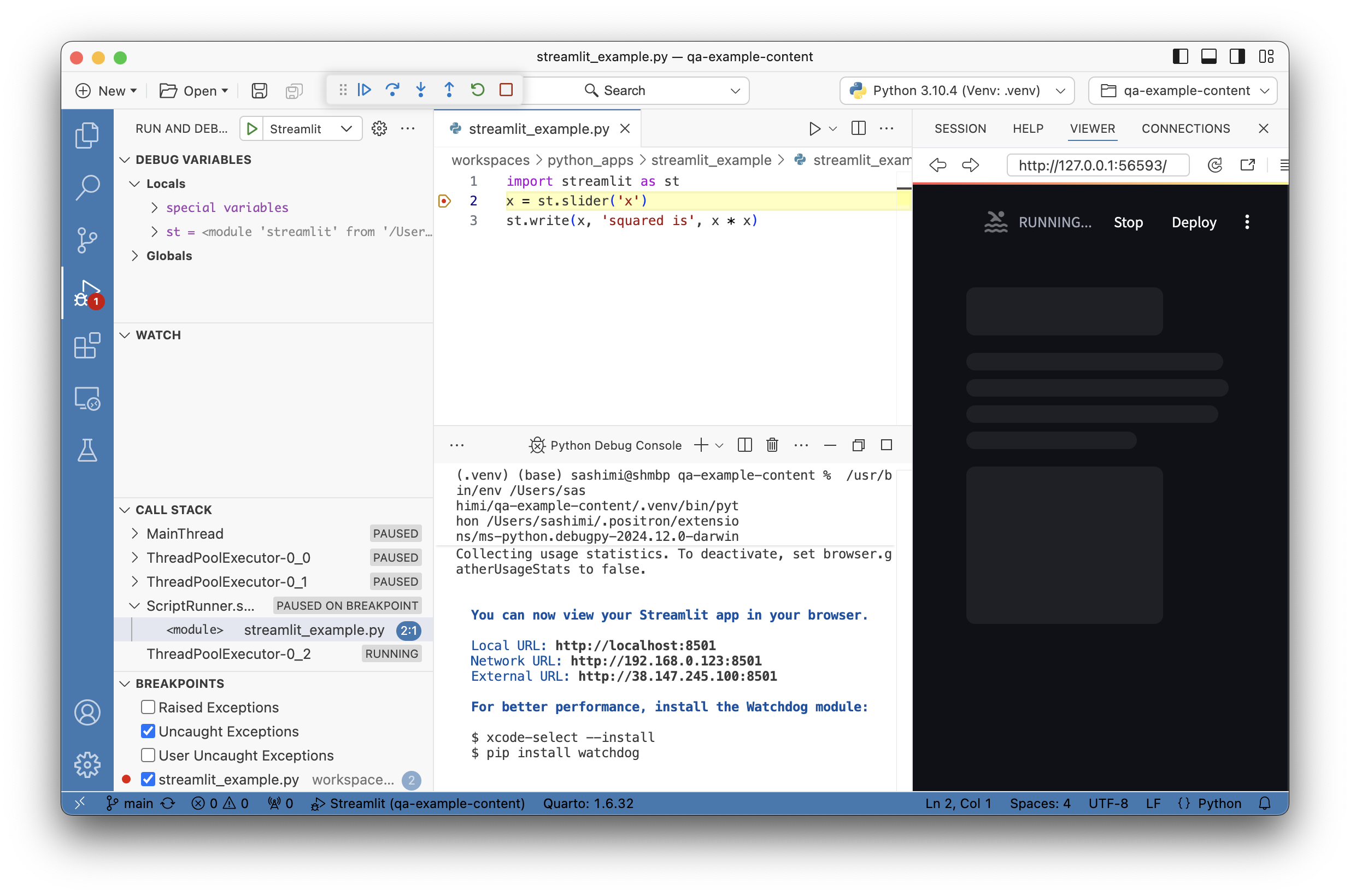
Then, Positron runs the app in a dedicated Terminal tab, opens the app URL in the Viewer pane, and starts the app in debug mode.